
Troubleshooting Windows 95 can feel like navigating a digital labyrinth. Yet, many of the obstacles users encounter can be addressed with relative ease. From system crashes to software glitches, understanding how to effectively apply solutions simplifies what might initially seem insurmountable. In this article, we delve into practical steps and insights to overcome typical Windows 95 issues. With the right approach, solving these issues not only preserves the functionality of your system but also enhances its longevity.
Diagnosing the problem
Before you can address a Windows 95 issue, it is crucial to identify the root cause. Random crashes or freezes may not stem from a single fault. Check if there’s a particular action or program that consistently triggers the issue. Accessing the built-in System Configuration Utility can help isolate the problem areas by disabling certain startup programs or drivers. For instance, if your system crashes whenever a specific application is running, try disabling it from startup and monitor if the instability persists.
Essential tools for troubleshooting
Keep a set of tools handy to tackle Windows 95 dilemmas. The System File Checker is invaluable for identifying and replacing corrupted files. Additionally, keeping a disk containing DOS utilities can help you perform low-level troubleshooting outside the Windows environment when necessary. For instance, a simple boot from a DOS disk can allow you to access and repair essential boot files, such as autoexec.bat or config.sys, which are often sources of boot-time errors.
Solving common startup issues
Boot problems are not uncommon. If Windows 95 fails to start, consider booting in Safe Mode. This mode allows you to load Windows with a minimal set of drivers, making it easier to remove problematic software or reconfigure settings that might be causing conflicts. A practical tip is to press F8 during startup to access the boot menu, from where you can choose Safe Mode. Once there, systematically uninstall recent programs or updates that might have led to the startup issues.
Improving system performance
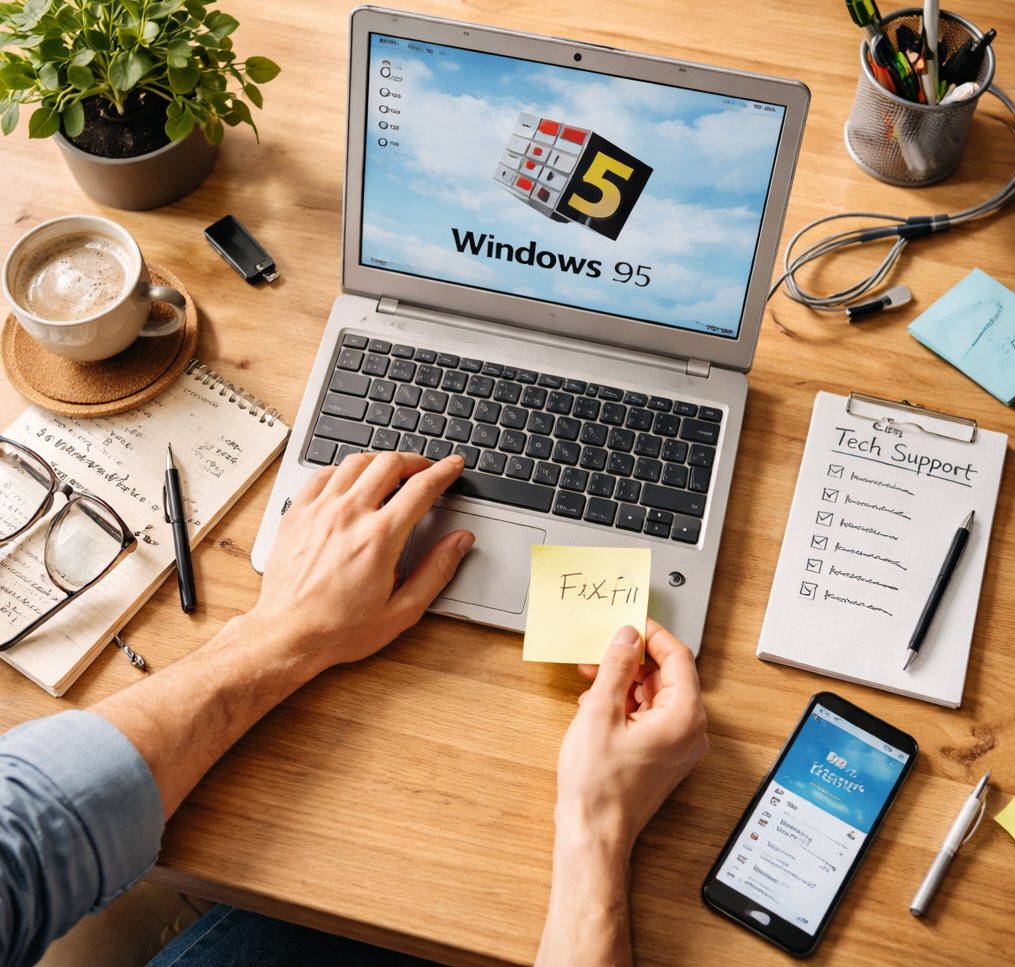 With time, systems running Windows 95 might slow down due to various reasons. Disk fragmentation is a frequent culprit. Running the Disk Defragmenter regularly can significantly improve system speed and responsiveness. Likewise, uninstalling unused programs and clearing out temporary files will free up resources and may rejuvenate the system’s performance. For optimal results, aim to defragment your disk monthly and ensure there’s always at least 20% free space on your hard drive to prevent further fragmentation.
Preventing future issues
Once your system is back on track, preventive maintenance is key to keeping it that way. Regular backups are crucial, ensuring that you have a fall-back option should something go awry. Additionally, maintaining an updated record of drivers and critical system files is prudent. This practice allows for quick restoration should newer software versions or updates introduce incompatibilities. Create a routine to back up critical files to an external device weekly, ensuring you can easily restore your system to a previous state if needed.
Applying updates wisely
While Windows 95 is largely a legacy system, some updates and patches are available to address known bugs and security vulnerabilities. Care should be taken to ensure compatibility with any installed hardware and software before applying these updates to avoid potential conflicts. Test updates in a controlled environment when possible and make use of rollback options if your system behaves erratically post-update.
The lure of nostalgia often accompanies the use of older systems like Windows 95. However, practical solutions and proactive measures can transform what is frequently seen as outdated technology into a reliably functioning system. By understanding how to effectively troubleshoot and maintain your system, you can enjoy both the charm and utility of Windows 95 without the headaches. Embracing these strategies will not only solve current issues but also prevent future ones, allowing you to enjoy a smooth and stable computing experience.
